

13-in-1 USB-C Dock: Triple Monitors + 100W Charging
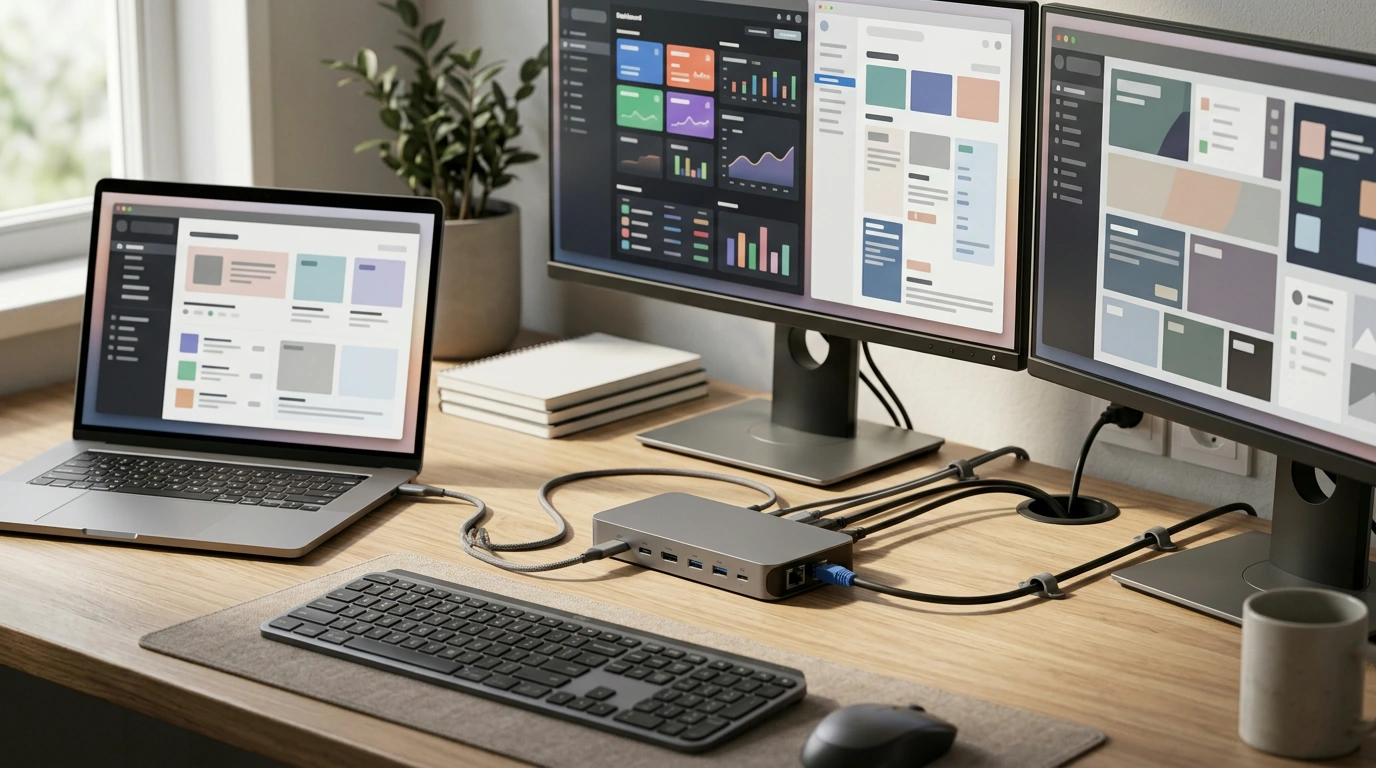
13-in-1 USB-C Triple Monitor Docking Station with 100W Laptop Charging: One Cable, Full Desktop Setup
A laptop can handle serious work—until the cables, adapters, and charging bricks take over your desk. Our 13-in-1 USB-C triple monitor docking station brings displays, power, wired network, and everyday ports into one clean connection. The goal is simple: you plug in once and get a stable, multi-screen workspace with up to 100W laptop charging so you can keep moving through the day.
What this docking station solves in a real workday
If you’re bouncing between meetings, hot desks, and a home setup, constant plug/unplug routines waste time and wear down ports. Our team built this dock around the “arrive and connect” moment.
- Turns one USB-C connection into a full desktop-style hub for displays, data, and peripherals.
- Keeps your laptop powered through up to 100W charging while monitors and accessories stay connected.
- Reduces cable swapping when you move between home, office, and conference room.
- Supports a cleaner desk layout by consolidating ports into a single unit.
Ports and capabilities to build a triple-monitor workstation
When your laptop screen isn’t enough, a dock becomes the “control center” for how you work. Triple-monitor setups are especially helpful when you need parallel windows open all day.
- Designed for multi-display workflows where a laptop alone doesn’t provide enough screen space.
- Great for side-by-side work: spreadsheets + email + browser, editing + timeline + preview, dashboards + chat + tickets.
- Handles desk essentials through one docking point: keyboard, mouse, external storage, headset, and wired internet.
- Pairs well with monitor arms and cable management—connect once and leave the dock in place.
At-a-glance setup checklist (what to connect and in what order)
A consistent connection order helps prevent “monitor roulette” where screens swap positions or wake inconsistently.
- Connect the dock to power first, then connect the dock to your laptop via USB-C for stable charging and performance.
- Connect your monitors next, then add USB accessories (keyboard/mouse/storage) and your network cable if needed.
- If your laptop is IT-managed, confirm whether drivers or display features are allowed before relying on a triple-monitor layout.
- After the first setup, keep the same port-to-monitor assignments to avoid rearranged display order.
Compatibility notes that matter for triple monitors
The most important reality: multi-monitor output depends on what your laptop’s USB-C port can send and what your operating system supports. A dock can route signals, but it can’t create video capability that isn’t there.
- Multi-monitor output depends on your laptop’s USB-C video support (often referred to as Alt Mode or equivalent) and OS display handling.
- Some laptops can extend across multiple external displays; others may mirror based on hardware limits.
- Mac users: many Mac models have specific constraints on the number of external extended displays—verify your exact model before planning a three-screen layout.
- Windows users: triple-monitor setups are commonly supported when your USB-C port supports the needed video features and your display settings are configured properly.
Quick compatibility checkpoints before buying
| Checkpoint | Why it matters | What to verify |
|---|---|---|
| USB-C port supports video (Alt Mode or equivalent) | A dock can’t add video output if the port can’t carry a display signal | Laptop specs for USB-C display support |
| Desired number of extended displays is supported | Some systems limit external screens, especially on certain chipsets/models | Your laptop model’s max external displays |
| Monitor inputs match the dock’s outputs | Avoid extra adapters and reduce handshake issues | HDMI/DisplayPort needs on each monitor |
| Power requirement is within 100W charging | Charging stays stable under load | Your laptop charger wattage (compare to 100W) |
| Operating system settings allow multi-display layouts | Correct arrangement, scaling, and refresh behavior | Display settings and updates |
100W laptop charging: what to expect at the desk
For background on the charging standard, you can reference the USB-IF overview of USB Power Delivery.
Suggested desk setups (pick the workflow that fits)
Everyday tips for stable displays and fewer disconnects
- Use quality video cables sized for your desk, and skip loose adapters when possible.
- If a monitor fails to wake, power-cycle the monitor first, then reconnect the USB-C cable to re-handshake.
- Keep your graphics drivers and OS updates current to reduce display detection quirks. For Windows help, see Microsoft’s Windows support; for Mac guidance, see Apple Support.
- If you’re running high-resolution monitors, confirm your laptop can drive your chosen resolutions across multiple screens at the refresh rates you expect.
When this dock is the right choice (and when a different setup fits better)
Product details and ordering
- Product: 13-in-1 USB-C Triple Monitor Docking Station with 100W Laptop Charging
- Availability: In stock (limited quantities can change quickly)
- Ideal for: home office, hybrid setups, multi-monitor productivity workstations
- Price: $198.51 USD
Also in stock at our store
FAQ
Will this docking station definitely extend to three separate external displays?
Triple-display behavior depends on your laptop’s USB-C video support and your system’s model/OS limits. Some setups can extend across three screens, while others may mirror or limit the number of extended displays even when multiple monitor ports are available.
Is 100W charging enough for a performance laptop?
Up to 100W is enough for many laptops during typical productivity and mixed workloads. If your original power adapter is rated higher than 100W, your laptop may charge more slowly—or hold steady rather than rapidly charge—when you’re pushing heavy workloads.
Do drivers need to be installed for multi-monitor output?
Some systems work plug-and-play, while others may require system updates or manufacturer software depending on how external displays are handled. If your device is managed by IT, driver installation or specific display features may be restricted by policy.













Leave a comment