

Electric Heating Mouse Pad: Warm Hands While You Work
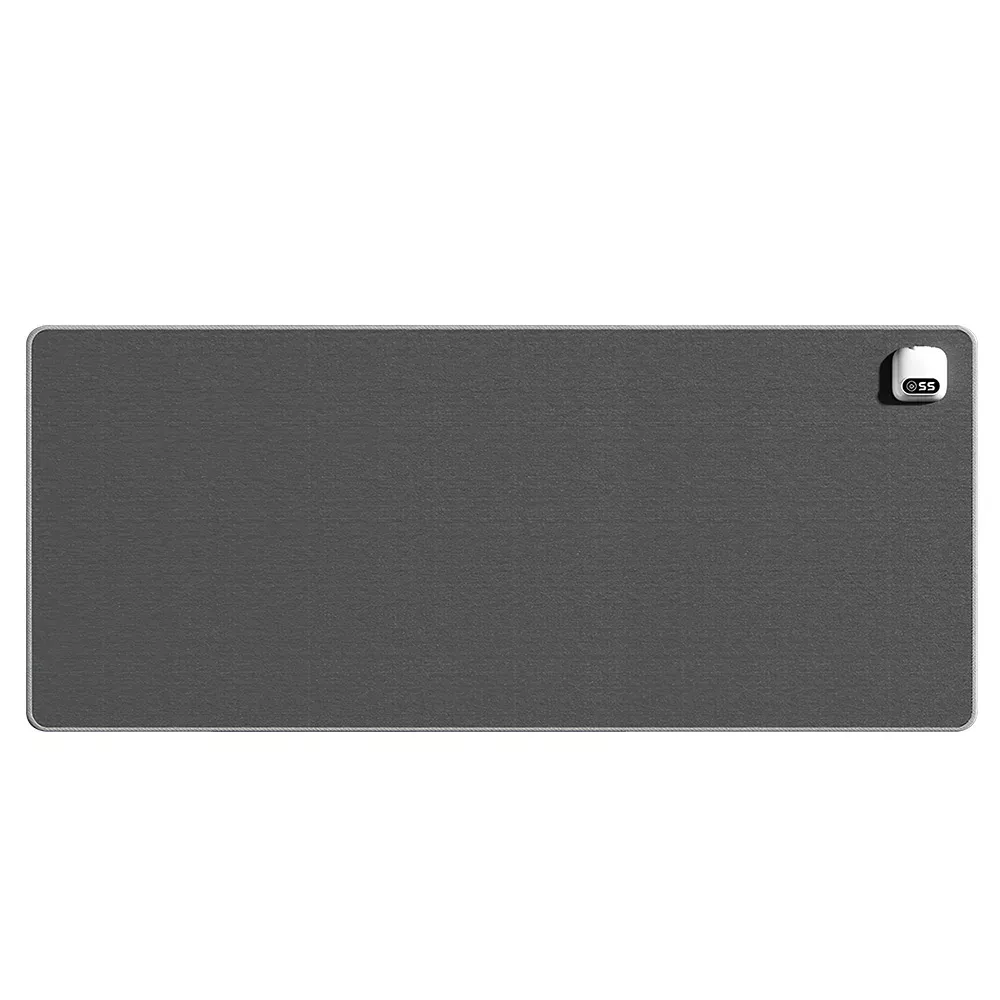
Electric Heating Mouse Pad for Warm, Comfortable Desk Work
Cold hands can make simple desk tasks feel slow and uncomfortable. An electric heating mouse pad adds gentle, targeted warmth right where the hand rests, helping maintain comfort during long work sessions, gaming, and late-night study. Instead of trying to heat an entire room (or sitting with one hand tucked in a pocket), this small desk upgrade focuses warmth where it matters most: the mousing hand and wrist.
What an Electric Heating Mouse Pad Does
An electric heating mouse pad looks and functions like a regular mouse pad, but with a slim heating element built underneath the surface. Once powered (often via USB or a low-voltage input, depending on the model), it provides localized warmth under the hand to reduce discomfort from chilly rooms or drafty offices.
This is especially helpful in winter, in over-air-conditioned workspaces, and in shared areas where turning up the thermostat isn’t an option. For home offices, dorm desks, coworking spaces, and gaming setups, localized heating can feel noticeably more efficient than warming the whole room just to keep fingers comfortable.
When It Makes the Biggest Difference
A heated mouse pad tends to shine in specific everyday scenarios:
- Cool offices and aggressive air conditioning: When your hands get cold even though the room “feels fine.”
- Poor insulation or drafty corners: Especially near windows or exterior walls.
- Cold fingers during desk work: For people whose hands chill quickly while typing and mousing.
- Long, still sessions: Night shifts, study blocks, or gaming marathons where the hand stays relatively still for long periods.
- Minimalist or restricted setups: When a space heater is impractical, takes up room, or isn’t allowed by workplace rules.
Key Features to Compare Before Buying
Not all heating mouse pads feel the same. A few details can make the difference between “occasionally useful” and “can’t-work-without-it.”
Heat levels and control style
Multiple temperature settings make it easier to match comfort without overheating. If a model includes a controller, check that it’s simple to use and positioned so it won’t get buried behind a keyboard or desk organizer.
Warm-up speed
Faster warming matters for short sessions. If you frequently sit down for a quick email batch or a 20-minute task, a pad that reaches a comfortable temperature quickly feels more convenient.
Surface feel and tracking
A smooth, consistent tracking surface supports predictable mouse movement. If the top is overly plush or textured, precision can suffer—especially for design work or fast-paced games. Consider your mouse type (optical vs. laser) and whether it’s picky about surfaces.
Size and shape
Make sure there’s enough room for mouse travel while keeping the wrist/hand on the heated area. Some people prefer a compact pad that stays centered under the palm; others want extra width so their hand remains on warmth even with larger movements.
Power and cable practicality
Confirm the power requirements (USB port, USB adapter, or other low-voltage input), cable length, and whether the cable routing will work with your desk layout. A pad can be comfortable, but annoying cable drag can ruin the experience.
Safety protections
Look for features such as overheat protection and auto shut-off if included. For general guidance on safe use of heated devices and preventing fire risks at home, review recommendations from the National Fire Protection Association (NFPA).
Quick Comparison: Heating Mouse Pad vs. Other Ways to Warm Hands
| Option | Warmth Target | Pros | Trade-offs |
|---|---|---|---|
| Electric heating mouse pad | Mousing hand/wrist area | Warmth exactly where needed; low footprint; desk-friendly | Only warms a small area; needs power cable management |
| Fingerless gloves | Hands | Portable; no power needed | May reduce dexterity; can feel bulky |
| Space heater | Whole room zone | Warms more than hands; improves overall comfort | Higher energy use; safety rules; takes floor/desk space |
| Reusable heat pack | Hands/pockets | Simple; portable | Limited duration; not integrated with mouse use |
Set Up for Comfortable Use
- Start flat: Place the pad on a flat surface for even heating and stable tracking.
- Route the cable intentionally: Keep it away from the mousing path to prevent drag and accidental unplugging.
- Begin low, then adjust: Start on the lowest heat setting and increase gradually until it feels comfortable.
- Keep wrist posture neutral: Rest the palm lightly rather than pressing down. For workstation posture and comfort basics, see OSHA’s computer workstation guidance.
Safe Everyday Use
Featured Option: Electric Heating Mouse Pad
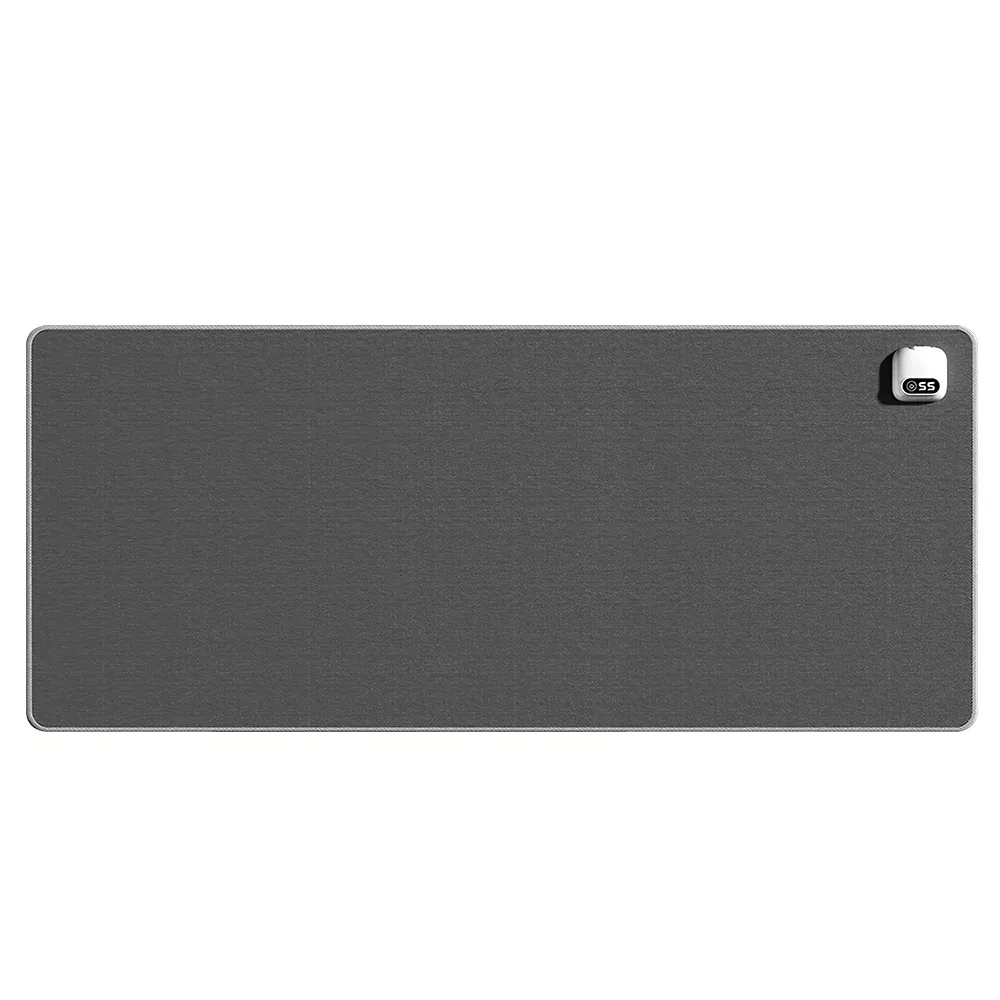
If the goal is simple comfort without changing the rest of the workspace, a dedicated heated pad is a straightforward upgrade. The Electric Heating Mouse Pad is designed to add targeted warmth to your desk routine—useful for office tasks, studying, and casual gaming where comfort matters most. Check the product page for current price, specs, and availability before ordering.
More Cozy Picks for Cold Days
- autumn-womens-coat for staying warmer between home and the office.
- Low Waist Cargo Pants for comfortable lounging or at-home desk days.
Care and Longevity Tips
FAQ
Is an electric heating mouse pad safe to leave on all day?
Use it only as needed, and prioritize models with overheat protection or auto shut-off when available. Keep it uncovered while heating, and unplug it when you’re away from the desk for extended periods. Always follow the product’s operating instructions.
Will a heated mouse pad affect mouse tracking?
Most are designed to work like standard mouse surfaces, but tracking still depends on the surface texture and your mouse sensor. If you notice skipped movement, try a moderate heat setting and test sensitivity settings on your mouse.
How do you clean an electric heating mouse pad?
Unplug it first and avoid soaking it. If the surface permits, wipe with a slightly damp cloth while keeping moisture away from any ports or controls, then let it dry completely before plugging it back in.













Leave a comment