

Connect a Galaxy Light to Your Phone: Bluetooth & Wi‑Fi
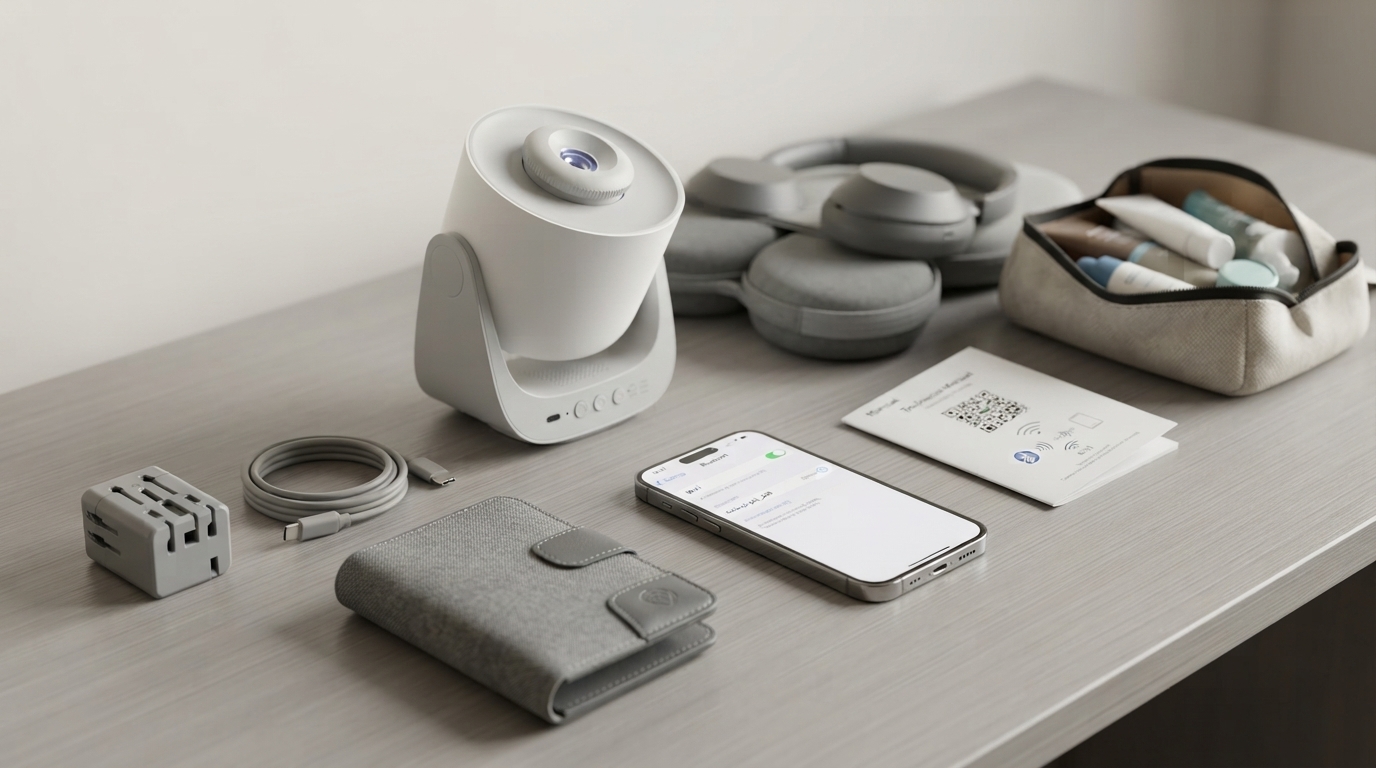
How do you connect your Galaxy light to your phone?
Most Galaxy light (star/nebula) projectors connect to your phone through a companion app using Bluetooth, Wi‑Fi, or both. The quickest path is to power the projector, enable your phone’s Bluetooth (and join the projector’s Wi‑Fi network if the app asks), then add the device inside the app. Once paired, you can usually control colors, brightness, rotation, timers, and music-reactive modes from your phone.
Step-by-step: Pair your Galaxy light with a phone
1) Power on the projector. Plug it in or charge it fully, then turn it on. Keep it close to your phone for the first connection.
2) Download the correct app. Check the manual or the QR code on the box/device for the recommended app name. Install it and allow Bluetooth and local network permissions when prompted.
3) Turn on Bluetooth (and Wi‑Fi if required). Many Galaxy lights pair over Bluetooth first, then use 2.4GHz Wi‑Fi for remote control. If the app requests Wi‑Fi, connect your phone to a 2.4GHz network (not 5GHz).
4) Put the projector in pairing mode. Some models enter pairing automatically the first time they turn on. Others require holding a button (often Power, Wi‑Fi, or a “Mode” button) for a few seconds until a light blinks or an indicator flashes.
5) Add the device in the app. Open the app, tap “Add Device” (or “+”), select the projector type, and follow prompts. If it’s Wi‑Fi-based, you may be asked to confirm your network name and password.
6) Confirm control. Test basic commands like changing color, adjusting brightness, or setting a timer to ensure the connection is stable.
If it won’t connect
Restart both the projector and your phone, then try again. Make sure the app has Bluetooth and local network permissions, and confirm you’re on 2.4GHz Wi‑Fi if the projector supports only that band. If the device was previously paired to another phone, remove it from the app or perform a reset so it can be discovered again.
For a more detailed walkthrough (including setup tips and sleep-friendly settings), visit this Galaxy LED night light projector setup guide.
FAQ
Why is my Galaxy light not showing up in the app?
It’s usually not in pairing mode, the app lacks Bluetooth/local network permission, or your phone is on 5GHz Wi‑Fi while the projector requires 2.4GHz. Restart both devices and retry pairing with the projector close to your phone.













Leave a comment